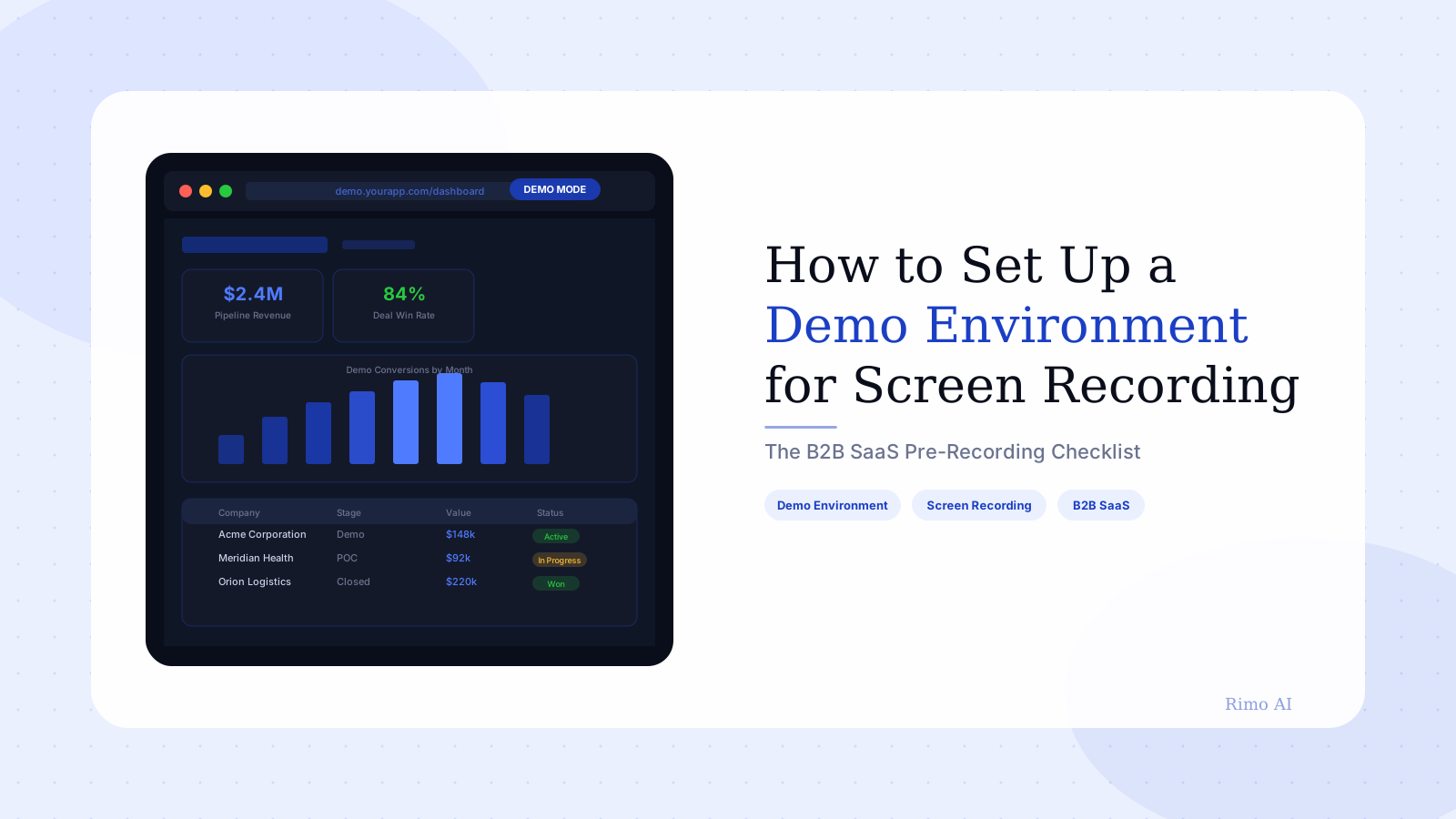
How to Set Up a Demo Environment for Screen Recording
You hit record. Three minutes in, a Slack notification slides in from the upper-right corner. You stop. You start again. This time, a browser extension auto-updates mid-flow and the tab reloads. Take three goes smoothly — until you drop the recording into your video editor and notice the account name visible in every screen is "Acme Corp Test 1" and the revenue figures in the dashboard are "$0.00" or "9999999."
Start over.
This is not a screen recording problem. It is a demo environment problem. And it costs B2B SaaS marketing and presales teams more hours than almost any other part of the demo video production process. According to Forrester's 2025 research, 58% of B2B buyers now expect detailed product demonstrations before their first conversation with a vendor. That means your demo video isn't a sales aid — for many buyers, it is the sales motion. A sloppy recording environment tells them everything they need to know about how seriously you take the product.
This guide covers exactly what a production-ready demo environment for screen recording looks like, step by step — including two things most teams never set up but should: a data seeding strategy and a maintenance process for when the product ships new updates.
In this guide
- Why demo environment setup matters more than your recording tool
- Step 1 — Build a demo data strategy
- Step 2 — Create a dedicated browser profile
- Step 3 — Set your display and recording configuration
- Step 4 — Silence every interruption source
- Step 5 — Run the pre-flight check
- The demo environment maintenance problem
- Multi-persona demo environments
- When you don't need a recording setup at all
- FAQ
Why demo environment setup matters more than your recording tool
Most teams approach demo video production as a recording challenge: which tool captures screen at the best quality, which microphone sounds best, which export format is smallest without quality loss. These are real questions. They are also the wrong starting point.
G2 reviews of Loom and Vidyard consistently surface the same issue from marketing teams: recording tools built for async communication were never designed for the controlled, repeatable environment that product demo video production requires (G2, 2025–2026). The problem isn't the recorder. The problem is the environment being recorded.
A buyer watching your demo video is doing one thing: assessing whether your product is real. Real meaning — does this actually work the way you say? Does the data look like it comes from a business like mine? Does anything look broken, fake, or half-finished?
A recording made in an unprepared environment fails on all three counts. Placeholder data reads as a product that isn't ready. Empty states suggest missing functionality. Notification popups are interpreted as poor product design. None of this is a fair assessment of your product. But B2B buyers have seen enough polished demos to know a rushed one when they see it.
The recording tool is the last five percent. The demo environment is the first ninety-five.
Step 1 — Build a demo data strategy
This is the step most teams skip entirely. They seed demo accounts with developer data ("John Smith," "test@example.com," "$123.45"), record everything, and then wonder why buyers don't engage.
Demo data is your product's supporting cast. If the data looks fake, the product looks fake — even when the UI is polished and the workflow is smooth. The data you populate your demo environment with should answer one question: does this look like real work happening inside a real organization?
The persona-first data approach. Before seeding any data, define the buyer persona watching the recording. A VP of Operations at a 200-person logistics company needs to see data that looks like a logistics operation: route names, delivery statuses, driver performance metrics. A Marketing Director at a SaaS startup needs to see content calendar entries, campaign metrics, audience segments. Same product. Different data layer. Both feel real to different buyers.
Data privacy risk: G2 reviews of Loom and Screencastify consistently flag the same hazard — a presenter clicks the wrong tab and real customer names, email addresses, or account numbers flash on screen for a split second. Screen recorders capture everything visible, including autofill suggestions, notification banners, and background app windows. Never record against a production environment. Never use real customer accounts as demo data. The fix is structural: isolated test accounts, fictional data, a dedicated recording browser profile. These steps are not optional for enterprise B2B teams who handle regulated data.
What believable demo data looks like:
- Names that feel real but are not real customers: use regional name generators or fictional business names that sound plausible
- Numbers that reflect realistic business scale: a "250-person company" should have 250 employee records, not 6
- Status distributions that reflect normal operations: not everything should be "Completed" — mix in "In Progress," "Pending," and "Overdue" states to show how the product handles real operational complexity
- Timestamps that are current: outdated data with dates from two years ago signals a stale demo environment immediately
A practical data seeding workflow. Most B2B SaaS products support CSV import or API data injection. Build a data seed file for each buyer persona — this takes 2–3 hours the first time and becomes a reusable asset. When the product ships a major update, refreshing the seed data takes 20 minutes, not a full rebuild.
The alternative is what the product demo video mistakes guide describes as Mistake 4: recording a messy demo environment. Buyers don't articulate this as a complaint. They just stop watching.
Step 2 — Create a dedicated browser profile
This is the single highest-ROI technical setup change a marketing or presales team can make. Most teams record in their default browser profile — the one with 23 pinned tabs, three ad blockers, a password manager, and LinkedIn Insights installed.
Create a separate browser profile used only for demo recordings. This profile should have:
- Zero extensions except those that are part of the product workflow being demonstrated
- No bookmarks bar visible — it creates visual clutter and occasionally shows personal or confidential bookmarks
- No saved passwords or autofill — you don't want the browser suggesting credentials mid-recording
- Zoom set to 100% — default zoom level ensures the UI renders as designed
- No history or recently visited sites in the address bar — the browser's autocomplete behavior can expose internal URLs if you click the address bar on camera
In Chrome: Settings → Manage Profiles → Add → name it "Demo Recording." In Firefox: about:profiles → Create a New Profile. Take 15 minutes to configure it once. You'll use it for every recording afterward.
One non-obvious addition: log in to the demo product in this profile with a dedicated demo account — not your personal admin account. Admin accounts frequently show account management warnings, billing alerts, or internal flags that should never appear on a buyer-facing recording.
Step 3 — Set your display and recording configuration
The technical recording setup matters, but less than most guides suggest. A 1080p recording at 30fps is fine for the vast majority of distribution contexts. 4K adds file size and export time without a meaningful quality difference in how buyers watch demo videos on a standard monitor.
Resolution and window size. Record at 1920×1080. If you're recording a browser window rather than full-screen, set the window to exactly that resolution before starting. Chrome DevTools has a responsive design mode that can lock a specific window size — useful for ensuring consistency across multiple recording sessions.
Aspect ratio. Record at 16:9 for standard web embedding. If you plan to distribute clips on LinkedIn or Instagram (both favor vertical or square), record the key product screens in a second pass sized for 9:16 or 1:1. Don't crop a 16:9 recording — you'll lose the critical UI elements at the edges.
Frame rate. 30fps for product demos. 60fps is only worth the file size increase if you're showing animation or rapid UI interactions that degrade at 30fps. Most SaaS interfaces don't have this problem.
Cursor visibility. Enable cursor highlight in your recording tool. On macOS, use Cursor Pro or a similar utility; most recording tools have a built-in option. Viewers should always be able to see what the presenter is clicking — especially in modal dialogs or dropdown menus where the interaction area is small.
Step 4 — Silence every interruption source
This step takes five minutes to run through and prevents an hour of wasted recording time. Work through it in this order before every session.
System level:
- macOS: System Settings → Focus → Do Not Disturb. Schedule it for the full recording window
- Windows: Settings → System → Focus Assist → Priority Only
- Disable automatic software updates for the duration of recording — update triggers mid-session are rare but catastrophic
Application level:
- Quit Slack, Teams, or any messaging app that generates system notifications
- Quit email clients — even with notifications off, badge counts change and can appear in recorded windows
- Quit calendar apps — meeting notifications are the single most common demo recording interruption
Browser level:
- In the demo recording profile, disable push notifications for all sites
- Close all tabs not required for the demo flow
- Log out of any non-demo accounts that might redirect you if you accidentally navigate to a page that triggers a login check
Hardware level:
- Silence your phone and place it face-down — vibrations are picked up by desk microphones
- Close doors to rooms with noise sources
- If recording audio, turn off fans or HVAC if possible — ambient noise is difficult to remove in post-production
Do a 30-second test recording with audio before every session. Play it back at full volume. What you can barely hear during recording is often very audible in the final video.
Step 5 — Run the pre-flight check
Before hitting record on any product demo video, run this checklist. It takes 10 minutes the first few times and under 5 minutes once it becomes routine.
The 10-minute demo environment checklist
Data layer:
- Demo account is logged in and populated with persona-appropriate data
- No placeholder names (John Smith, Test User, foo@bar.com) visible in any screen you plan to record
- Dates and timestamps are current or plausibly recent
- All required records exist — empty states where populated data should be are a common missed error
- Dashboard metrics reflect realistic business numbers for the persona
Browser:
- Recording profile active (not personal profile)
- Address bar empty or hidden
- Bookmarks bar hidden
- Zoom set to 100%
- No stray tabs open in the recording window
System:
- Do Not Disturb active
- Slack and email quit — not just minimized
- Test recording of 15 seconds: audio quality, cursor visibility, window size confirmed
Script:
- You have the demo video script or scene plan in a non-recorded window or printed document
- You know the exact click path through each scene — no improvising mid-recording
- The ending CTA is visible and correct in the product's final state
Last check:
- The product is at the current version — confirm with your engineering team if you're not sure
- Any in-product onboarding modals or tooltips that appear on first login are already dismissed
Skip the environment setup — let Rimo handle it
Rimo generates polished product demo videos from a brief, using real product screens without the setup overhead. No dedicated browser profile. No data seeding. No pre-flight checklist. Just a demo that looks production-ready.
The demo environment maintenance problem
Here's the part nobody writes about: setting up a clean demo environment once is the easy part. Keeping it clean is the ongoing operational challenge that quietly kills demo programs.
Most B2B SaaS products ship updates weekly or bi-weekly. Every time a meaningful UI change ships — a navigation update, a new feature in an existing screen, a redesigned dashboard — your recorded demos become partially or entirely outdated. Buyers who have seen a competitor's current UI will notice immediately when yours shows something different. It erodes trust in exactly the same way a messy demo environment does.
The solution is to treat your demo environment as a product asset, not a one-time setup. This means:
A demo environment owner. Someone — typically a PMM or SE — is responsible for reviewing the demo environment after every major product release. This person runs through the recorded demo flow in the live environment and flags any screens that need re-recording. At most B2B SaaS companies, this review takes 30–45 minutes per product cycle. Without an owner, it simply doesn't happen.
A version log. Keep a simple document — a Notion page, a Confluence doc, a spreadsheet — that lists every demo recording and the product version it was made on. When a major update ships, check the version log to identify which recordings are now outdated. This is less about granular version tracking and more about having a single source of truth that prevents a six-month-old recording from staying live because nobody remembered to check.
A re-recording trigger. Define the threshold for re-recording in advance. Minor copy changes: no re-record needed. Navigation structure change: re-record. New feature in a core workflow screen: re-record that scene. Full redesign: rebuild from scratch.
Consensus's 2024 Sales Engineering Workload Report — surveying more than 600 presales professionals — found that 79% of sales engineers spend more than an hour per week just cleaning and maintaining their demo environments. Sixteen percent spend between 3 and 10 hours per week on this task alone. The same research found that 67% of SEs take at least five business days to deliver a demo after a request. The production bottleneck is almost never the recording itself. It is the environment.
Wistia's State of Video 2025 found that AI use in video production jumped from 18% to 41% in a single year — the largest adoption spike in the report's history. A large part of that jump is driven by teams that found AI video generation significantly reduces re-recording overhead: instead of re-recording every time the product ships, a single brief update regenerates the affected scenes.
The teams that stay ahead of demo environment debt are the ones who have systematized the re-recording process. The teams that fall behind it are the ones who still treat each recording as a one-off project. The difference compounds over time.
Multi-persona demo environments
Most teams run one demo environment and record everything from it. For a product with a single buyer persona, this is fine. For any product sold to multiple stakeholders — which is nearly every B2B SaaS product in enterprise or mid-market — it is a significant quality limitation.
A sales engineer running a technical evaluation demo for a CTO needs a different data view than a product marketing manager producing an awareness-stage video for a marketing audience. The CTO's demo environment should show API usage logs, system integration status, permissions configuration, and technical audit data. The marketing audience's demo environment should show business outcomes, team-level metrics, and workflow automations.
These are not different products. They are the same product, with different data seeds and different workflows highlighted. But recording both from the same environment forces you to either show irrelevant screens to each audience or crop and edit extensively in post-production.
The multi-persona environment approach:
- One admin account with access to all demo accounts
- Separate demo accounts for each major buyer persona — typically 2–4 for most products
- Separate data seeds for each persona, reflecting realistic data for that role
- Named profiles so your recording setup notes clearly indicate which environment a given recording was made in
This sounds like more setup. It is — the first time. After that, each recording session starts by loading the right profile rather than re-seeding data mid-production. For teams producing persona-specific videos (which SaaS demo video best practices consistently recommend), this infrastructure pays for itself on the first set of persona variants.
When you don't need a recording setup at all
There is a version of this problem that disappears entirely depending on how your team produces demo content.
If you're recording from your own product interface — navigating through screens, narrating a workflow — everything above applies. Your environment, your data, your browser configuration, your notification hygiene.
If you're using an AI demo video generation tool, the recording environment is largely irrelevant. Tools in this category generate product visuals from a brief or from imported screen assets, meaning there's no live recording session to manage, no demo environment to seed, no browser profile to configure, and no Slack notification that can ruin take seven.
This is why many marketing and presales teams exploring product demo video without screen recording find the switch eliminates an entire category of operational friction — not just the recording, but the environment maintenance, the persona-switching, and the re-recording cycle after every product update.
The right answer depends on your production workflow. Teams that need to show very specific, current product behavior in real time — for technical evaluations, late-stage POC support, or live sales demos — typically need the live recording approach with a properly maintained environment. Teams producing awareness, consideration, and onboarding content often find that AI-generated video handles the job with a fraction of the overhead.
Rimo sits in the second category. A brief describing the feature, the buyer persona, and the core outcome generates a polished demo video using real product screens — without a recording session. When the product updates, you update the brief, not the recording environment. For teams AI-driven demo video production, that shift in the production model changes what "demo environment setup" means entirely.
FAQ
What is a demo environment for screen recording?
A demo environment for screen recording is a dedicated, controlled version of your software product configured specifically for video production — populated with realistic fake data, stripped of personal accounts and extensions, and isolated from system notifications. It differs from your live production environment because it is designed to look credible to buyers without exposing real customer data, and from your development environment because it reflects how the product actually looks to a real user, not a developer or internal tester.
How long does it take to set up a demo environment?
Initial setup takes 3–6 hours: 2–4 hours to seed persona-appropriate demo data, 30 minutes to configure a dedicated browser profile and recording settings, and 30–60 minutes for a dry run of the full recording flow. Once established, maintaining the environment after product updates takes 30–45 minutes per release cycle. Teams using AI video generation tools reduce this significantly — updating a text brief takes minutes rather than hours.
Should I use my real product or a staging environment for demo recordings?
Use your real product if your staging environment doesn't consistently reflect the current UI and behavior. Staging environments are sometimes a sprint behind production, which can cause recording inconsistencies. If you have a reliable staging environment that mirrors production, it is safer for recording because it insulates your demo content from unexpected production changes mid-session. The key requirement: whatever environment you use must be visually identical to what buyers will see in a live product experience.
How do I prevent notifications from appearing during screen recording?
Enable Do Not Disturb at the system level before every recording session: on macOS, set Focus → Do Not Disturb; on Windows, enable Focus Assist → Priority Only. Quit — do not minimize — Slack, Teams, and email clients during the recording window. In your recording browser profile, disable push notifications for all websites. If you're recording on a laptop, place your phone face-down away from the desk and silence it completely. A 30-second test recording before each session will confirm your notification setup is working.
How often should I update my demo environment?
After every major product update that changes screens visible in your recorded demos. Define "major" in advance: navigation restructuring, feature additions in recorded workflows, and dashboard redesigns all require updates. Minor copy changes, color adjustments, and backend-only changes typically don't. A version log — a simple document listing which recordings match which product release — makes this review manageable. Without a version log, teams routinely discover they've been distributing six-month-old recordings for weeks without realizing.
Can I use the same demo environment for different buyer personas?
You can, but you shouldn't for high-priority recordings. A single demo environment forces you to either use generic data that fits no persona precisely, or heavily edit recordings in post-production to remove irrelevant screens. Persona-specific demo accounts — typically 2–4 separate accounts with different data seeds and different workflow states — produce significantly more credible recordings for each audience. The initial data seeding investment is 2–4 hours per persona; the ongoing maintenance is minimal once the accounts are established.
Akshay Sharma
Product Leader · 10+ years in B2B SaaS
Akshay has spent 10+ years building and marketing B2B SaaS products. He writes about product storytelling, demo production, and the operational side of product marketing.