Best Video Tutorial Software for B2B SaaS Teams in 2026 (10 Tools, Tested)
Someone on your team just got asked to "record a quick tutorial" for the third time this week. Maybe it's onboarding for a new feature, maybe it's a walkthrough for the support team, maybe it's a step-by-step for a customer who keeps hitting the same wall. Whatever it is, the request always sounds simple — until you open whatever tool you used last time and realize the UI has changed, the recording is choppy, and the export settings are buried three menus deep.
That's the moment most teams start looking for video tutorial software that actually fits how they work — not just a screen recorder bolted onto a sharing link, but something built for repeatable, structured, on-brand tutorials.
This guide breaks down the 10 tools B2B SaaS teams actually shortlist in 2026, what G2 reviewers say after using them for months (not minutes), where each one falls apart, and — because almost nobody talks about this — what happens to your tutorial library six months after you publish it.
In this guide
- What is video tutorial software?
- How we evaluated these tools
- The 10 best video tutorial software tools in 2026
- How to choose the right tool for your team
- The maintenance problem nobody talks about
- FAQ
What is video tutorial software?
Video tutorial software is any tool used to record, narrate, edit, or generate instructional videos that show someone how to complete a task — inside a product, a workflow, or a process.
That's a wide net on purpose. Some tools are screen recorders with light editing (Loom, ScreenPal). Some are full editing suites built for polished output (Camtasia, Descript). Some skip recording entirely and generate a tutorial from a script or a set of steps (Synthesia, Guidde, Rimo). All of them are trying to solve the same problem: turning "someone on the team knows how to do this" into "anyone can watch a video and do it themselves."
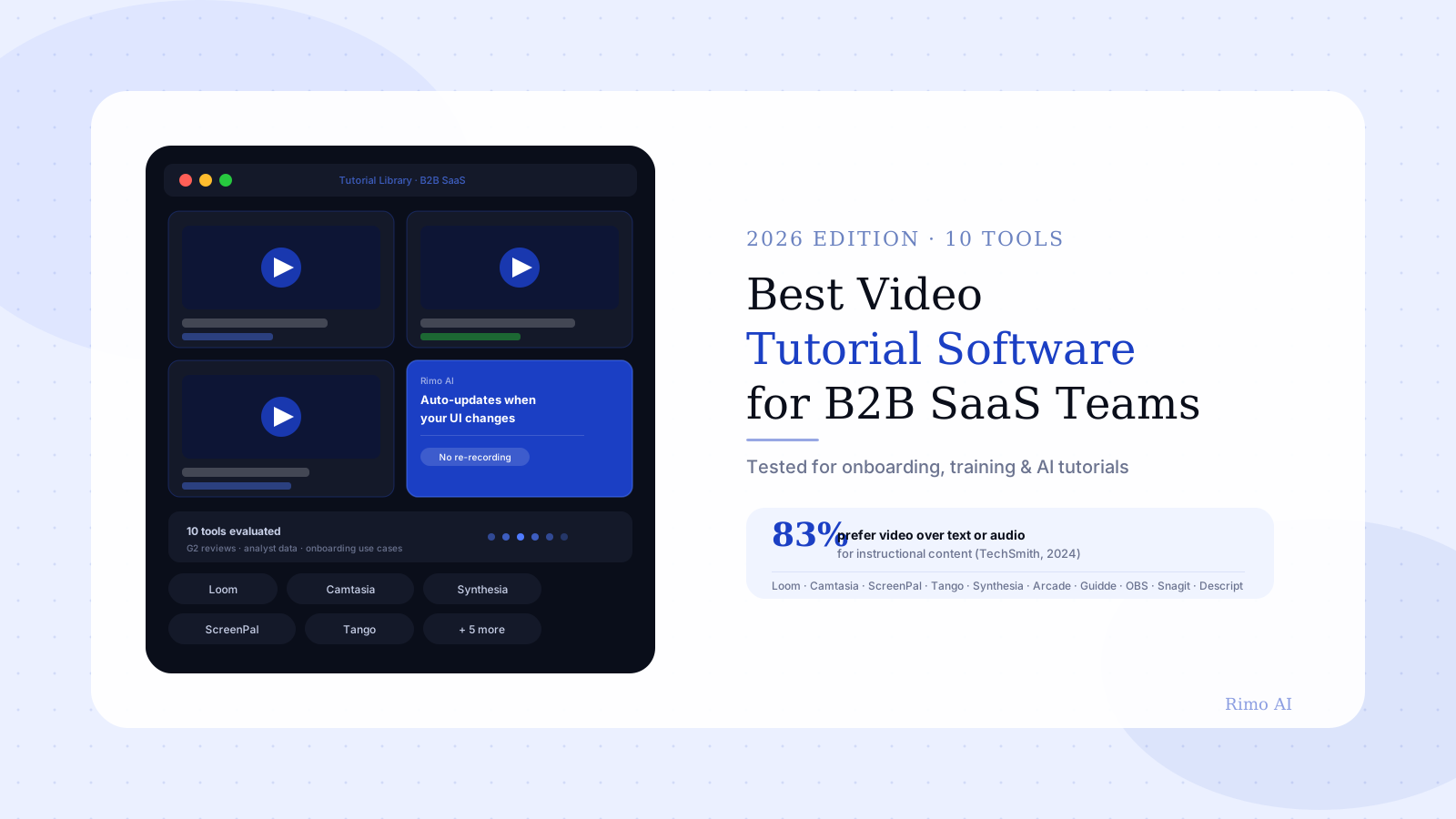
The category matters more than it used to. TechSmith's 2024 survey found that 83% of people would rather watch a video than read text or listen to audio when learning how to do something (TechSmith, 2024). For B2B SaaS specifically, that preference shows up directly in support ticket volume — a well-placed tutorial video for a common workflow consistently reduces "how do I..." tickets, because the answer is sitting right there, on demand.
The fast adoption of AI here isn't a coincidence. Recording, editing, and re-recording tutorial videos by hand is one of the most repetitive tasks in a marketing or enablement team's workload — and repetitive tasks are exactly where AI tools get adopted first.
How we evaluated these tools
We didn't rank these based on feature lists alone — every vendor's feature list looks impressive. Instead, we weighted four things: how the tool performs for B2B SaaS-specific use cases (product onboarding, feature releases, customer training), what G2 and Capterra reviewers say after using the tool for real projects, how well the output holds up when your product UI changes next month, and total cost once you account for seat limits and export restrictions.
One pattern showed up across nearly every G2 review thread we read: reviewers love these tools for the first recording. The complaints start showing up around the tenth one — when editing gets repetitive, storage limits hit, or the product has changed enough that half the library needs a re-shoot.
The 10 best video tutorial software tools in 2026
Here's the shortlist, in the order most B2B SaaS teams should actually consider them.
1. Loom
Loom is still the default answer to "just record something quick," and for async screen recordings — Slack messages, quick walkthroughs, code reviews — it's hard to beat. Recording starts in seconds, sharing is a link, and the viewer-side experience (with reactions and comments) is genuinely good for internal use.
The G2 complaints cluster around two things. First, editing: reviewers consistently describe Loom's trim and clip tools as "basic" compared to dedicated editors, which makes it frustrating once you need to cut mistakes or rearrange sections (G2). Second, the free plan's recording length and storage limits get called out as "annoying" by reviewers who try to build a tutorial library on the free tier and hit walls fast (G2).
Best for: Quick internal walkthroughs and async communication. Watch out for: Building a structured, on-brand external tutorial library — Loom wasn't designed for that, and it shows once you try.
2. Camtasia
Camtasia is the closest thing to a professional video editor built specifically for screen recordings — annotations, callouts, quizzes, zoom-and-pan effects, the works. For training videos that need to look polished and on-brand, it's a long-time favorite of L&D and enablement teams.
The tradeoff is weight. G2 reviewers describe Camtasia as resource-heavy, especially on longer projects with multiple tracks — exports can lag, and the editor itself can feel sluggish on older machines (G2). A more specific complaint that comes up repeatedly: the desktop app's near-daily update prompts interrupt recording sessions, which is a uniquely irritating problem for a tool whose entire job is to capture your screen without interruptions (G2).
Best for: Polished, branded training content where editing depth matters more than speed. Watch out for: Performance on long or multi-layered projects, and the update-prompt interruptions during recording.
3. ScreenPal
ScreenPal (formerly Screencast-O-Matic) sits between Loom and Camtasia — more editing power than Loom, lighter weight than Camtasia. Reviewers consistently rate it well for ease of use, and in head-to-head comparisons against Camtasia, several G2 reviewers say ScreenPal fits their team's actual needs better, even with fewer advanced features (G2).
The honest tradeoff: ScreenPal's editing ceiling is lower than Camtasia's. If your tutorials need branded templates, advanced annotations, or interactive quiz elements, you'll outgrow it. For straightforward "record, trim, export" tutorial workflows, it's one of the best value picks on this list.
4. Tango
Tango takes a completely different approach: instead of recording video, it captures your clicks as you walk through a workflow and automatically generates a step-by-step guide with annotated screenshots — which it can also export as a walkthrough video.
This is a great fit for process documentation — internal SOPs, onboarding checklists, "here's how to submit an expense report" type content. It's a weaker fit for customer-facing product tutorials where tone, pacing, and narration matter, because the output is closer to an annotated slideshow than a video.
Best for: Internal process documentation and SOPs. Watch out for: Customer-facing tutorials that need narration and pacing — Tango's format doesn't carry tone the way a recorded or generated video does.
5. Synthesia
Synthesia generates videos with an AI avatar reading a script you provide — no camera, no recording, no on-camera talent. For training content that needs a consistent "presenter" across dozens of videos (compliance training, onboarding modules, multi-language training), this solves a real problem: you're not coordinating a person's schedule every time a script changes.
The catch is fit. An AI avatar works well for narrated training content where the avatar is the focal point. It works less well for product tutorials, where the screen — not the presenter — needs to be the focus, and reviewers note that screen-recording integration feels like an add-on rather than the core experience.
6. Arcade
Arcade builds interactive, clickable product walkthroughs from your actual product — the viewer clicks through real (or near-real) screens rather than watching a passive video. For self-serve product tours embedded on a website or in an email sequence, it's one of the most popular tools in this category.
The distinction worth understanding: an interactive product tour and a tutorial video solve different problems. A tour is exploratory — the viewer controls the pace. A tutorial is instructional — it needs to land a specific sequence of steps in order, every time, regardless of what the viewer clicks. If your goal is "teach someone to do X," a video format usually beats an interactive tour, because you control the pacing.
7. Guidde
Guidde is one of the newer AI-native entrants — it records your screen, then uses AI to auto-generate a script, voiceover, and step-by-step annotations from that recording. It's positioned directly at the "tutorial video" use case, and the auto-documentation angle (turning a raw recording into a structured guide) is genuinely useful for teams that hate writing voiceover scripts.
It's worth treating Guidde the way you'd treat any AI-assisted recording tool: the AI speeds up the editing and scripting step, but you're still the one doing the screen recording, which means you're still re-recording every time the product changes.
8. OBS Studio
OBS Studio is the free, open source option — and it's a genuinely capable one. If your team has any technical comfort, OBS gives you full control over scene composition, multiple sources, audio mixing, and recording quality, with zero licensing cost. It's the most flexible open source video production software on this list by a wide margin.
The tradeoff is exactly what you'd expect from open source tooling: no built-in editing, no templates, no AI assistance, and a setup process that will intimidate a non-technical marketer. OBS is best treated as a recording tool that feeds into a separate editor — not a complete tutorial video workflow on its own.
9. Snagit
Snagit, also from TechSmith, is the lightweight sibling to Camtasia — quick screen captures (image or short video) with solid annotation tools. It's less a "make a tutorial video" tool and more a "make a quick visual explanation" tool, and it's genuinely good at that narrower job.
For teams that need short, annotated clips inside a help center article or a Slack message, Snagit is fast and cheap. For a full tutorial video library with narration and structure, it's not built to carry that weight — and most teams that start with Snagit eventually add something else alongside it.
10. Descript
Descript edits video by editing text — you cut, rearrange, and remove filler words ("um," "uh") by editing a transcript, and the video updates to match. For tutorial videos with a lot of narration, this is a significant time-saver compared to scrubbing a timeline manually.
The learning curve is real, though. Reviewers who come from traditional timeline editors describe an adjustment period before the transcript-based workflow clicks. Once it does, it's one of the fastest ways to produce narrated tutorial content — but "once it does" is doing some work in that sentence.
The pattern across all 10 tools: every single one of them assumes a human is recording the screen. That assumption is the single biggest source of long-term cost in a tutorial video program — not the software price, but the hours spent re-recording every time your product UI changes. Keep that in mind as you read the rest of this guide.
Skip the recording step entirely
Rimo turns a product brief and your existing screenshots into a polished, narrated tutorial video — no screen recording, no re-shoots when the UI changes.
How to choose the right tool for your team
Most "best of" lists stop at features. The decision that actually matters is which tradeoff your team can live with, because every tool on this list is good at something and weak at something else.
If your team is small (1–3 people) and the priority is speed, start with Loom or ScreenPal for internal content, and don't try to make either one carry a polished external tutorial library — that's not what they're built for. If you're building branded customer-facing training at any real volume, Camtasia or Descript will get you there, but budget real time for the editing learning curve, not just the recording.
If your tutorials are mostly process documentation — "here's how to do X in our internal tool" — Tango will save you more time than any video tool, because it skips video editing entirely. And if your biggest constraint is that your product UI changes every sprint and your tutorial library can't keep up, that's a different problem than any screen recorder solves — which brings us to the part most guides skip.
The maintenance problem nobody talks about
Here's the part that every other "best video tutorial software" roundup leaves out: the tool you pick on day one is not the cost. The cost is what happens in month six, when your product ships a redesigned navigation bar and 40 of your 60 tutorial videos now show a UI that no longer exists.
This is not a hypothetical. It's one of the most common reasons tutorial video libraries quietly stop being maintained — not because the team stopped caring, but because re-recording, re-editing, and re-publishing 40 videos is a multi-week project that never makes it to the top of anyone's list. The videos stay live. They just become slightly wrong, then very wrong, until someone notices a customer complaining that "the video doesn't match the product."
We had a great library of Loom walkthroughs for onboarding. Then we redesigned the dashboard and basically all of them became misleading overnight. Re-recording felt like starting from zero.
This is exactly the gap that AI-generated video closes — not by editing faster, but by removing the recording step altogether. If a tutorial video is generated from a script and a set of current screenshots rather than a screen recording, updating it after a UI change means swapping a few screenshots and regenerating, not re-shooting and re-editing from scratch. The guide on how to automate demo video creation with AI covers this workflow shift in more depth, including how teams are restructuring their content pipelines around it.
There's a less obvious upside too: if your tutorial videos are generated rather than recorded, you can produce role-specific or persona-specific variants — one tutorial for admins, one for end users — without multiplying your recording workload. Most teams never attempt this with traditional screen recording, simply because the math doesn't work. It's not that nobody wants persona-specific tutorials; it's that nobody has time to record five versions of the same walkthrough.
If you're still recording manually, at minimum invest in a clean dedicated recording environment for demos — sample data, no half-finished features visible, consistent zoom levels — so that when you do re-record, the new version is faster to produce than the first one was.
Conclusion
There's no single "best" video tutorial software — there's the tool that matches how often your product changes, how many tutorials you need, and who's making them. For quick internal walkthroughs, Loom or ScreenPal are still the fastest path. For polished, branded training libraries, Camtasia and Descript earn their learning curves. For internal process docs, Tango is the efficient choice.
But if your team is spending more time re-recording outdated tutorials than making new ones, that's a signal the recording-first model has hit its limit — and it's worth looking at tools that generate tutorial videos from a script and screenshots instead of a live capture. That's the gap Rimo is built for: turn a product brief into a polished, narrated tutorial video without anyone touching a screen recorder, and update it in minutes when your UI changes.
FAQ
What is the best free video tutorial software? OBS Studio is the most capable fully free option, especially for teams with some technical comfort, since it offers professional-grade recording with zero cost. Loom and ScreenPal both offer usable free tiers for short, simple tutorials, though recording length and storage limits will push most teams toward a paid plan once they're producing tutorials regularly.
What's the difference between video tutorial software and screen recording software? Screen recording software captures what's on your screen — that's the core function of tools like OBS or the free tier of Loom. Video tutorial software typically adds editing, annotations, narration tools, and sometimes AI-generated voiceover or scripts on top of (or instead of) recording, specifically to support instructional content rather than general video capture.
Can AI fully replace screen recording for tutorial videos? For many product tutorials, yes — tools that generate video from a script and screenshots can produce a polished walkthrough without anyone recording their screen, which also makes updates far faster when the UI changes. AI-generated video is a weaker fit for tutorials that need to show genuinely live, unscripted product behavior, like real-time collaboration features.
How long should a tutorial video be? Most effective product tutorials run 1–3 minutes for a single workflow. Longer training modules (5–10 minutes) work for multi-step processes, but should be broken into chapters so viewers can jump to the section they need rather than watching the whole thing.
Do I need different software for internal training vs. customer-facing tutorials? Not necessarily, but the priorities shift. Internal training tolerates rougher production quality in exchange for speed — Loom or Tango are usually enough. Customer-facing tutorials reflect on your brand, so tools with better editing, branding, and narration (Camtasia, Descript, or AI-generated video) are worth the extra time.
How often should a tutorial video library be updated? Review your library every time you ship a UI change significant enough to make a video visually inaccurate — typically every quarter at minimum for fast-moving products. Videos that show an outdated interface erode trust quickly, especially for new users who assume the video reflects what they're about to see.
Akshay Sharma
Product Leader · 10+ years in B2B SaaS
Akshay has spent 10+ years building and marketing B2B SaaS products. He writes about product storytelling, demo production, and the operational side of product marketing.